Run a Card Shop Controls & Menus
Find every important button fast — Gear codes, stock orders, shelf pricing, binder, grading, and ranked entry.
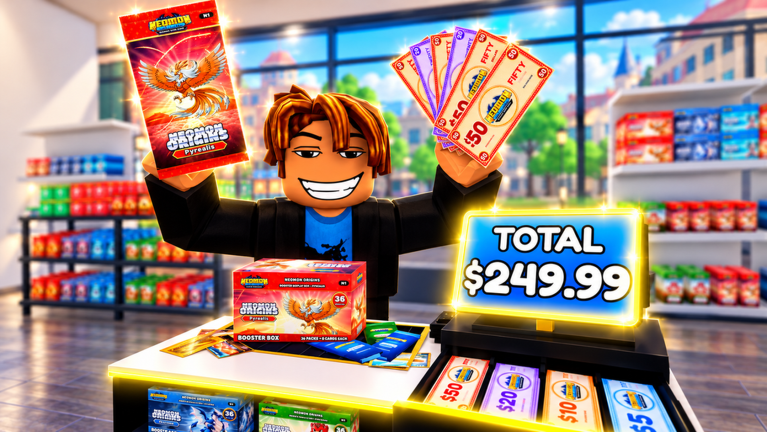
New shopkeepers lose Cash because they cannot find the right menu — not because the economy is impossible. This controls guide maps the UI of Run a Card Shop by Lucky Pulls so you spend minutes selling packs instead of hunting icons. Pair it with Getting Started for the first-hour plan and how to redeem when you only need the code path.
Play on Roblox PC, mobile, or tablet. Layouts scale, but the mental model stays the same: Gear for account/settings/codes, shop tools for stock and prices, collection tools for binder/grading, and battle tools for trainers, gym leaders, and ranked.
Gear menu (upper-right)
The Gear / Settings icon is the most searched control on this wiki because it owns promo codes.
- Look at the upper-right corner of the HUD.
- Open Gear.
- Find the Code text field.
- Paste an active string from the Codes Hub (goldrush, nightmare, check eclipse).
- Press Redeem and confirm Cash, Chroma, or packs landed.
If the field ignores input, finish the tutorial first. Codes are case-sensitive; remove trailing spaces. Expired strings (halloween, witchinghour) always fail — do not spam them.
Gear may also hold audio, graphics, and account-facing toggles. Change those after your shop is stocked so you do not AFK in menus during a rush.
Shop floor controls
Ordering stock
Open the wholesale / shop order UI (left-side or phone-style shop icon depending on client). Add booster boxes for the lines you unlocked — prioritize Gold Rush and Nightshade using the pack tier list. Checkout the order, wait for boxes to arrive, then move product onto shelf facings.
Empty shelves earn nothing even if offline earnings exist elsewhere. Always leave the floor looking full before you log out (shop management).
Pricing tags
Click the price board / tag next to a shelf SKU. Set a number that undercuts chaotic neighbors without racing to zero. Use the Neighbor Price Clipboard habit from Tools and the narrative in Make Money Fast.
Too high → customers walk. Too low → you work for free. Recheck tags after code floods dump free packs into every inventory.
Register / checkout
Stand at the register when customers approach with packs. Confirm the sale and give change when the UI asks. Hire staff when queues form faster than you can click — staff is the control that multiplies every other control.
Open / close and offline earnings
Keep the store in a state that allows offline ticks: stocked shelves, sane prices, and staff coverage when possible. Logging out with empty facings wastes the strongest “macro” the game already gives you for free.
Collection controls
Opening packs
Select packs in inventory and open them into the binder flow. Watch for shinies and god packs — stop spam-opening long enough to secure hits. Early accounts should open a few packs to learn rarity UI, then shelf later freebies for Cash (collection binder guide).
Binder and singles tables
Binder views track set completion across the large card pool (community talk references hundreds of Neomon-line cards and broader 500+ set goals). Display tables let you showcase and sell singles. Put chase pulls and graded slabs where visiting neighbors can see them — eight players per server means your layout is advertising.
Grading machine / queue
Submit only high-ceiling cards toward Gem Mint 10. The control is simple; the discipline is not. Full process: Card Grading and rarities value.
Battle controls
Build a deck from owned cards, duel trainers and gym leaders for practice, then enter ranked from Beginner toward Crown. Tournament hall space is both a prestige room and a traffic magnet — keep sealed product on the approach path. Deep guide: Ranked Battles.
If a script GUI fights the battle UI, disable automation before ranked (Scripts Hub).
Décor and profile controls
Name the shop, paint surfaces, and place items from the 120+ décor catalog. Profile showcases highlight your best cards. Spend Cash on stock before Chroma on impulse lighting. Chroma from codes is easy to burn in one sitting.
Neighbor visits use the same movement controls as walking your own floor — tour two shops every session for price intel.
PC vs mobile tips
| Task | PC tip | Mobile tip |
|---|---|---|
| Codes | Paste from clipboard into Gear | Paste carefully; watch autocorrect |
| Restock | Mouse precision on shelves | Pinch-zoom if facings feel tiny |
| Checkout | Stand still at register | Disable movement joysticks during sale |
| Pack opens | Keyboard + mouse speed | Batch opens, then binder review |
| Ranked | Stable FPS helps timing | Play on Wi-Fi, not flaky data |
Common “where is that button?” failures
- Looking for codes in Discord bots instead of Gear.
- Ordering stock but never placing boxes on shelves.
- Changing décor while the register queue grows.
- Opening the grading UI with empty Cash after impulse Chroma spends.
- Entering ranked with an empty deck because binder filters hid staples.
Session opener using controls only
- Gear → redeem live codes.
- Order + shelf Gold Rush / Nightshade.
- Retag prices vs neighbors.
- Hire or check staff.
- Open or shelf free packs on purpose.
- One trainer duel or grading submit — not both if time is short.
- Log out stocked.
Print that loop with Tools checklists. When Lucky Pulls ships a UI shuffle, re-verify against Updates and November 2026.
Related pages
- Codes Hub
- Getting Started
- Shop Management
- Collection & Binder
- Players Hub for Discord help if a button moved
Frequently Asked Questions
Quick answers to the most common questions.
Where do I redeem Run a Card Shop codes?
Open the Gear icon in the upper-right, paste the code into the Code box, and press Redeem after finishing the tutorial.
Why can’t I find the code box?
Tutorial flags often lock redemption. Complete onboarding, then reopen Gear. Confirm you are in Run a Card Shop by Lucky Pulls, not a different card shop game.
How do I change pack prices?
Select the price tag beside the shelf SKU and set a competitive number. Recheck after code floods.
Where is grading?
Use the grading machine / queue UI on high-value cards only. See the Card Grading guide before spending resources.
Do controls differ on mobile?
Icons scale and use taps instead of clicks, but Gear, stock, pricing, binder, and battle flows map to the same systems.